
Editing your home page, section by section
Open, move, hide, delete and add sections.
Open Pages, then Home page. Each section of your page is listed in order, the same order visitors see.
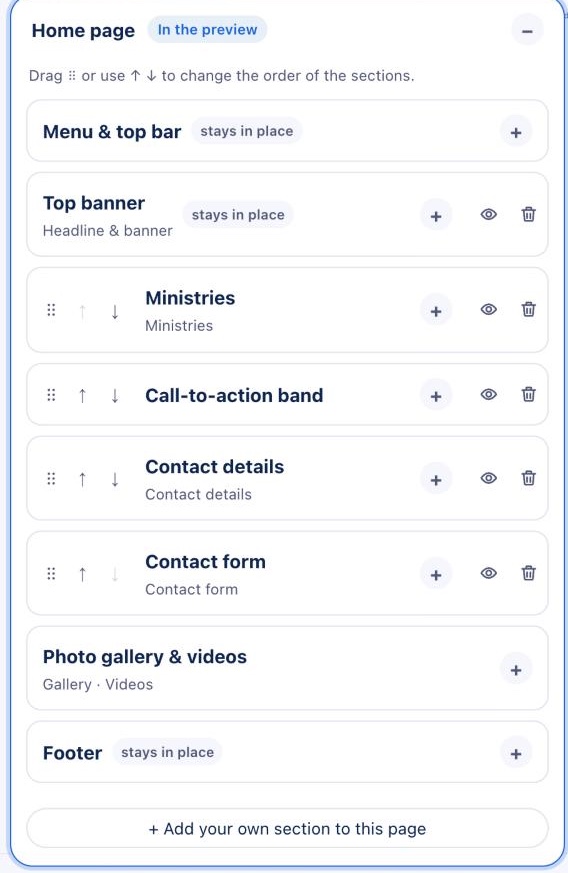
- Open a section: click its name (or the +) to change its words, pictures and colors. You can also click that section in the preview.
- Move it: drag the dots, or use the ↑ and ↓ arrows.
- Hide it: click the eye. It stays in the editor but leaves your site, so you can bring it back later.
- Delete it: click the bin.
- Add your own: click + Add your own section to this page for a new section with words, pictures, buttons or a form.
Sections marked stays in place (like your menu, top banner and footer) always sit at the top or bottom.