
Get audio from your Vimeo videos
Turn each message's Vimeo video into an MP3 automatically, for your audio player and your podcast.
If your messages have a Vimeo video but no MP3, they can't play as audio on your site or appear in your podcast (Apple Podcasts, Spotify and apps like GoodBarber only take audio). We can make the MP3s for you: we download the video from your own Vimeo account, keep just the sound, and attach it to the right message. Old messages get done in one go, and new ones every hour from then on.
What you need:
- MP3 hosting turned on for your site (in Media Manager, under MP3 files).
- A paid Vimeo plan (Starter or higher) on the account that owns your videos. Free Vimeo accounts can't share their video files.
- About 5 minutes, signed in to that Vimeo account.
Step 1: Open Vimeo's developer page
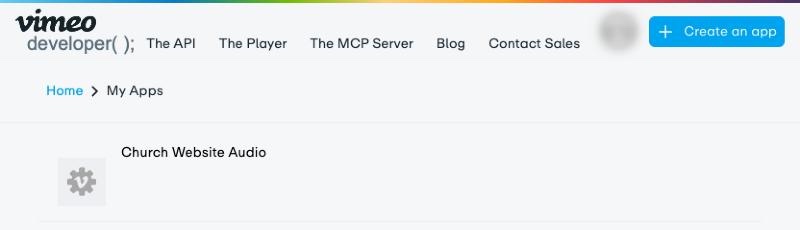
Sign in to Vimeo as the account that owns your sermon videos, then go to developer.vimeo.com/apps.
- Already have an app listed? Click it and skip to Step 3.
- No apps yet? Click Create an app at the top right.
Step 2: Create an app (first time only)
An "app" is just a container for your key; nothing is installed anywhere. Fill in the short form:
- App name: anything, like Church Website Audio.
- App description: anything, like Makes MP3s from our sermon videos for our website.
- Will people besides you be able to access your app? Choose No.
- Tick the box to agree to Vimeo's terms, then click Create app.
Vimeo may ask you to prove you're not a robot first. That's normal.
Step 3: Check your plan allows downloads
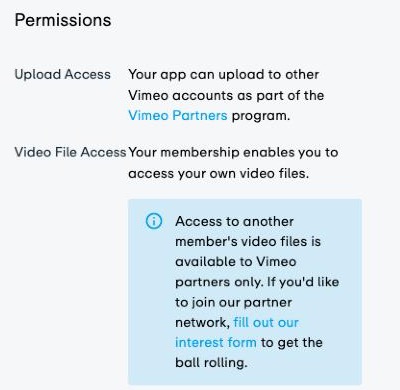
On your app's page, look at Permissions → Video File Access. It should say "Your membership enables you to access your own video files." If it says your plan doesn't allow it, you'll need to upgrade your Vimeo plan first.
Step 4: Generate your key
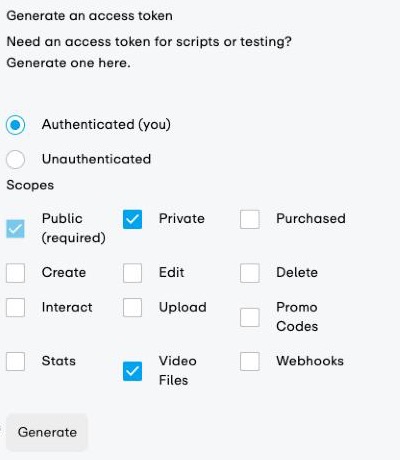
Scroll down to Generate an access token (or click Generate Access Token in the menu on the left).
- Choose Authenticated (you). Not Unauthenticated: that one can't see your videos.
- Under Scopes, tick Private and Video Files. Public is already ticked.
- Click Generate.
Step 5: Copy the key
Your new key appears in the Personal Access Tokens list underneath. It's the row whose scopes say private video_files public: a string of about 32 letters and numbers.
- Double-click the key to select it (make sure all of it is highlighted), then copy it (⌘C on a Mac, Ctrl+C on Windows).
- Don't use the blue copy buttons elsewhere on the page: those are for other things.
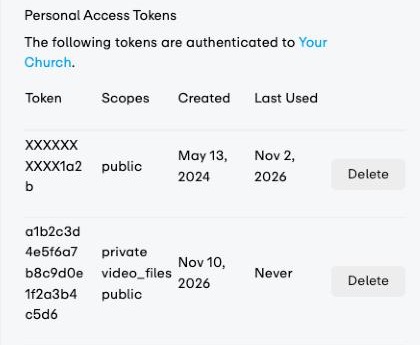
Vimeo shows the whole key only once. If you lose it, just generate a new one; it's free.
Step 6: Paste it into your site
In the editor, open Media Manager and then MP3 files. Under Audio from Vimeo, paste your key and click Save and check.
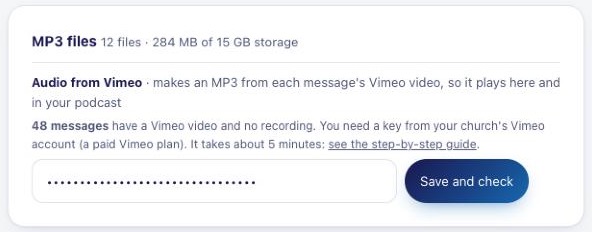
We check it with Vimeo straight away. When it works, you'll see Connected to your Vimeo account and Your newest video can be downloaded.
Step 7: Make your recordings
- Click Make recordings now to do every message that has a Vimeo video and no recording, newest first. Each takes a minute or two, and it runs in the background, so you can keep working or close the page. Click Stop anytime.
- Tick Automatic so that from now on, whenever you add a message with a Vimeo link, its recording is made within the hour and your site is updated on its own.
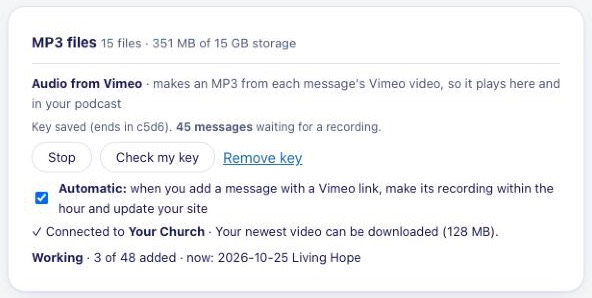
As recordings are added, your live site and podcast are updated for you. If you have other changes you haven't published yet, we leave publishing to you: click Update live site when you're ready.
Good to know
- Each recording is about 20 MB for a 45-minute message, and counts toward your storage.
- Your key is stored privately and never shown again. Remove key turns the feature off; recordings already made stay.
- A message added to Vimeo isn't added to your site on its own: add the message in Media Manager with its Vimeo link, and the recording follows.
- "Vimeo turned this key down": part of the key was missed when copying. Copy it again and save.
- "This key can't see that video": the video is on a different Vimeo account than the one you made the key on.